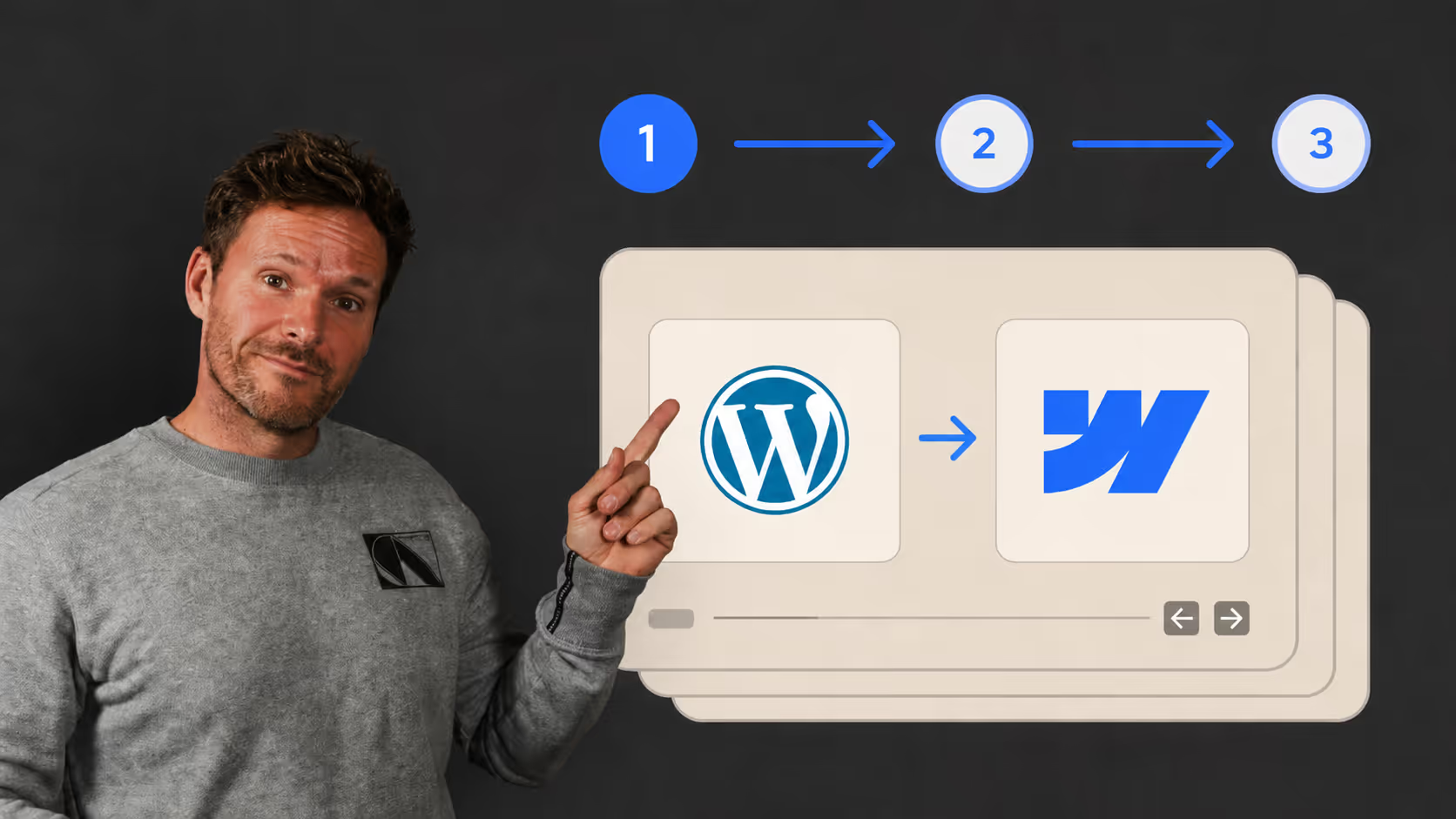
Most B2B SaaS teams don’t migrate from WordPress because they love Webflow. They migrate because WordPress has become a liability - a platform where every plugin update is a potential incident, where marketing velocity depends on developer availability, and where the total cost of ownership keeps climbing while the competitive advantage keeps shrinking.
Done correctly, a WordPress to Webflow migration protects every SEO asset you’ve built and removes the overhead that slows your team down. Done poorly, it can drop organic traffic by 30-40% overnight. The difference is entirely in the execution. This checklist covers every step that matters - in the right order.
Why the Move Makes Business Sense
The “WordPress is free” argument breaks down fast when you add up what a typical B2B SaaS team actually pays to keep it running:
- Hosting (performant): $500-2,000/year
- Themes and essential plugins: $300-800/year
- Security monitoring: $200-400/year
- Ongoing maintenance contracts: $1,500-4,000/year
- Emergency fixes (conflicts, incidents): $500-1,500/year
That’s somewhere between $3K and $9K in year one alone. Over three years, many teams hit $20,000+ on a platform they believed was nearly free.
Webflow removes most of this. Hosting, CDN, SSL, and performance are managed. There are no plugins to update or conflicts to debug. Marketing teams publish and update content without engineering tickets. For SaaS companies where website velocity directly influences pipeline, that operational shift compounds quickly.
The SEO upside is real too - migrations done well have shown Lighthouse performance scores jump from the mid-40s to 95+ and organic traffic increase 20%+ within 90 days. But neither outcome is guaranteed. Both depend entirely on how the migration is executed.
Phase 1: Audit Before You Build Anything
The most expensive migration mistakes happen before a single page is rebuilt. The pre-migration audit is not optional busywork - it is the work.
Run a full crawl. Use Screaming Frog or Ahrefs Site Audit to export every URL on your current site. This becomes your migration blueprint. Every URL in the export either needs to exist on the new site or redirect to the right place.
Capture your SEO baseline. Before anything changes, record:
- Organic traffic by page (last 90 days, from GA4)
- Keyword rankings for all traffic-driving pages
- Core Web Vitals scores (from Search Console or PageSpeed Insights)
- Total indexed pages (Search Console Page Indexing report)
Without this baseline, you cannot tell at 30 or 60 days whether the migration helped, hurt, or was neutral.
Map your plugins and integrations. List every active plugin and identify its Webflow equivalent. Most marketing and CRM integrations (HubSpot, Zapier, Stripe, GTM) have clean Webflow solutions. Some, for example WooCommerce for complex ecommerce, do not have a direct replacement and need a separate solution plan.
Phase 2: Redirect Map - The Most Critical Technical Step
Missed redirects are responsible for almost every dramatic SEO drop in WordPress to Webflow migrations. A 301 redirect tells Google that your new page is the same asset as your old one and transfers the link equity that page has accumulated. Without it, you are starting from zero on that page.
Build your redirect map in a spreadsheet before touching the Webflow build:
| Old URL | New URL | Type |
|---|---|---|
| /blog/old-slug | /blog/new-slug | 301 |
| /old-page | /new-page | 301 |
| /retired-page | / | 410 |
Use 301s for every page that has moved. Use 410s (gone) for pages you are intentionally retiring - better than letting them 404. Never use 302s in a migration unless you have a specific technical reason.
Webflow has a built-in redirect manager in Site Settings and supports bulk CSV import. Build the map in your spreadsheet, import it, and test a sample of 20-30 URLs before launch. Do not add redirects one by one after go-live - that’s how they get missed.
Phase 3: CMS Architecture - Design for Search Intent
This is where most migration guides are unhelpfully vague. “Recreate your CMS structure in Webflow” is absolutely not enough instruction.
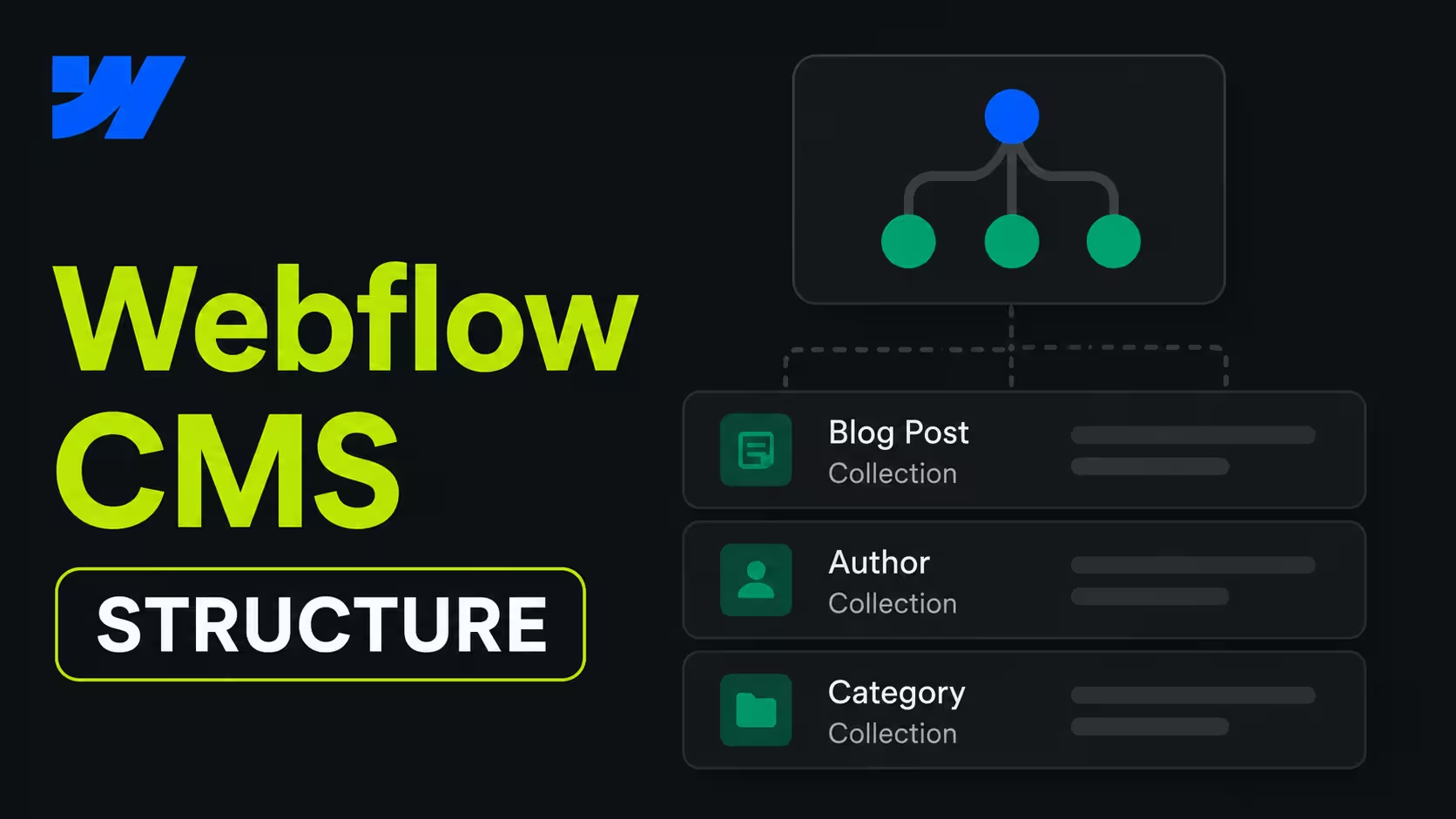
Webflow CMS is a structured content system - every collection is a template applied consistently across every item in it. That is a significant SEO advantage, because it means you can enforce metadata fields, URL patterns, and schema across your entire content library. But only if the architecture was designed with search intent in mind, not just content type.
A typical B2B SaaS site needs distinct collections for different intents:
| Collection | Intent | Examples |
|---|---|---|
| Blog / Resources | Informational | How to Guides, Industry Insights |
| Comparisons | Decision stage | Webflow vs WordPress, HubSpot vs Salesforce |
| Use Cases | Commercial | Webflow for SaaS, Webflow for Startups |
| Integrations | Feature research | Webflow HubSpot Integration |
| Case Studies | Proof / Trust | Client Results, Migration Stories |
Each collection template needs dedicated fields for meta title, meta description, canonical tag, OG image, and schema type - not defaults. Defaults produce generic metadata and tank click-through rates.
The metadata transfer problem: WordPress SEO plugins like Yoast store custom meta titles and descriptions in the database. This data does not transfer automatically when you export and import content. Export your Yoast data separately via CSV before migration and map those fields to your Webflow CMS fields on import. Skipping this step is the single most common cause of click-through rate drops post-migration, even when rankings hold.
The shortcode problem: WordPress shortcodes do not migrate. Any content using shortcodes to embed tables, forms, calculators, or pricing blocks will appear as raw shortcode text after import. Audit your content for shortcode patterns before exporting - run a database search for “[ shortcode syntax” - it takes 20 minutes and saves hours of post-launch cleanup.
Phase 4: Technical SEO Configuration in Webflow
Webflow handles most technical SEO natively without plugins. Before launch, verify every setting is configured intentionally:
- Sitemap: Enabled in Site Settings and submitted to Google Search Console.
- Robots.txt: Reviewed - confirm no important pages are blocked.
- Canonical tags: Set per page or per CMS template.
- Noindex: Applied only to pages that should not be indexed (thank-you pages, internal search, staging previews).
- Schema markup: Added for CMS-driven pages (priority types: Article, FAQPage, Organization, BreadcrumbList).
For Core Web Vitals, run PageSpeed Insights on staging before launch. Webflow’s clean codebase performs well out of the box, but watch for:
- Uncompressed images (use WebP and compress before uploading).
- Heavy third-party scripts (load analytics, chat, and heatmap tools asynchronously).
- Large Lottie animation files (lazy-load where possible).
Phase 5: Pre-Launch QA
Never launch from development. Publish to Webflow’s staging subdomain (“yoursite.webflow.io”) and run a structured QA before connecting your domain.
Crawl the staging site: Run Screaming Frog against the staging URL. Look for: 404s on pages that should exist, missing meta titles or descriptions, broken internal links, images without alt text, duplicate H1 tags.
Test your redirects: Take a sample of 30 URLs from your redirect map and verify each one resolves to the correct destination with a 301 - not a redirect chain (A > B > C).
Verify integrations: Confirm analytics is firing, CRM form submissions are routing correctly, conversion events are tracking, and GTM tags are loading as expected.
Content review: Have someone not involved in the build review the top 20 pages for formatting issues, missing sections, and broken embeds. This catches problems that crawlers miss.
Launch timing: Go live on a Monday or Tuesday evening in your primary users’ timezone - for sure not a Friday afternoon.
Phase 6: Launch Day Sequence
When QA is complete, execute in this order:
1. Connect your custom domain in Webflow Site Settings and update DNS.
2. Confirm SSL is provisioned and active.
3. Submit your new sitemap to Google Search Console immediately.
4. Request indexing for your most important pages via GSC URL Inspection tool.
5. Verify redirects are working on the live domain (not just staging).
6. Confirm all tracking is firing using GTM preview mode.
Super important: Keep your WordPress site accessible internally for at least 30 days - not live, but accessible - in case you need to reference original content.
Phase 7: Post-Launch Monitoring
The migration is not complete at launch. The 90 days after go-live determine whether your SEO gains are durable.
7 days: Check Search Console daily. Watch the Page Indexing report and crawl errors. Any 404 errors that appear are missed redirects - fix them immediately.
30 days: Compare organic traffic and keyword rankings to your pre-migration baseline. Review Core Web Vitals in Search Console.
60 days: Full keyword ranking comparison. Investigate any pages that have lost traffic - usually a redirect issue or metadata that didn’t transfer correctly.
90 days: Full performance review against pre-migration KPIs. If rankings are stable or improving, the foundation is solid. Plan your next phase of content and SEO work from here.
What Changes After a Clean Migration
A correctly executed migration does not just move your website. It changes completely how your marketing team operates.
Content updates that required a developer ticket happen in the Webflow Editor in minutes. New landing pages are built without engineering involvement. The plugin vulnerability that used to trigger an incident at 2am does not happen anymore. The performance issues caused by 40 active plugins disappear.
For B2B SaaS teams where marketing velocity directly impacts pipeline, these changes compound. The team that publishes faster, tests more, and iterates quicker wins more organic traffic over time.
The SEO checklist above is what ensures you don’t give away the rankings you’ve already earned in the process of making that transition.
FAQs
Not if the migration is executed correctly. The platform itself is not the risk - Webflow has strong native SEO capabilities including full control over meta titles, descriptions, canonical tags, 301 redirects, schema markup, and sitemaps.
The risk is entirely in the execution. The migrations that hurt SEO almost always share the same root causes: a redirect map that was incomplete, metadata that didn’t transfer from Yoast or Rank Math, or pages that were accidentally set to noindex on the new site.
A clean migration that benchmarks SEO performance before go-live, maps every URL to its correct destination, and monitors Search Console closely in the first 30 days should hold rankings - and often improves them, because Webflow sites tend to perform significantly better on Core Web Vitals than plugin-heavy WordPress setups.
For most B2B SaaS marketing sites, yes - and the gap is growing. Webflow generates clean, semantic HTML without plugin overhead, loads fast on a global CDN by default, and gives marketing teams direct access to every on-page SEO field without developer involvement.
WordPress can match Webflow on SEO configuration when set up correctly, but it requires more maintenance to stay that way. Every plugin update is a potential conflict, and performance tends to degrade over time as sites accumulate technical debt.
Where WordPress still holds an edge is in very large content operations with complex editorial workflows, deep developer customization needs, or WooCommerce-based ecommerce. For a B2B SaaS marketing site focused on organic growth and pipeline, Webflow is the stronger long-term choice.
For a typical B2B SaaS marketing site, expect 3 to 5 weeks from kickoff to launch. Larger sites, or migrations that happen simultaneously with a rebuild, can run up to 12 weeks.
The phases that consistently take longer than teams expect are the pre-migration audit, redirect mapping, and metadata transfer - not the design or Webflow build work. Teams that try to rush these phases are the ones that end up with 30-day post-launch firefighting.
If the timeline feels too long, the right response is to scope the migration conservatively and launch a clean, complete site rather than a fast, incomplete one.
Migration costs vary depending on site size, whether a rebuild is happening in parallel, and how much custom functionality needs to be rebuilt.
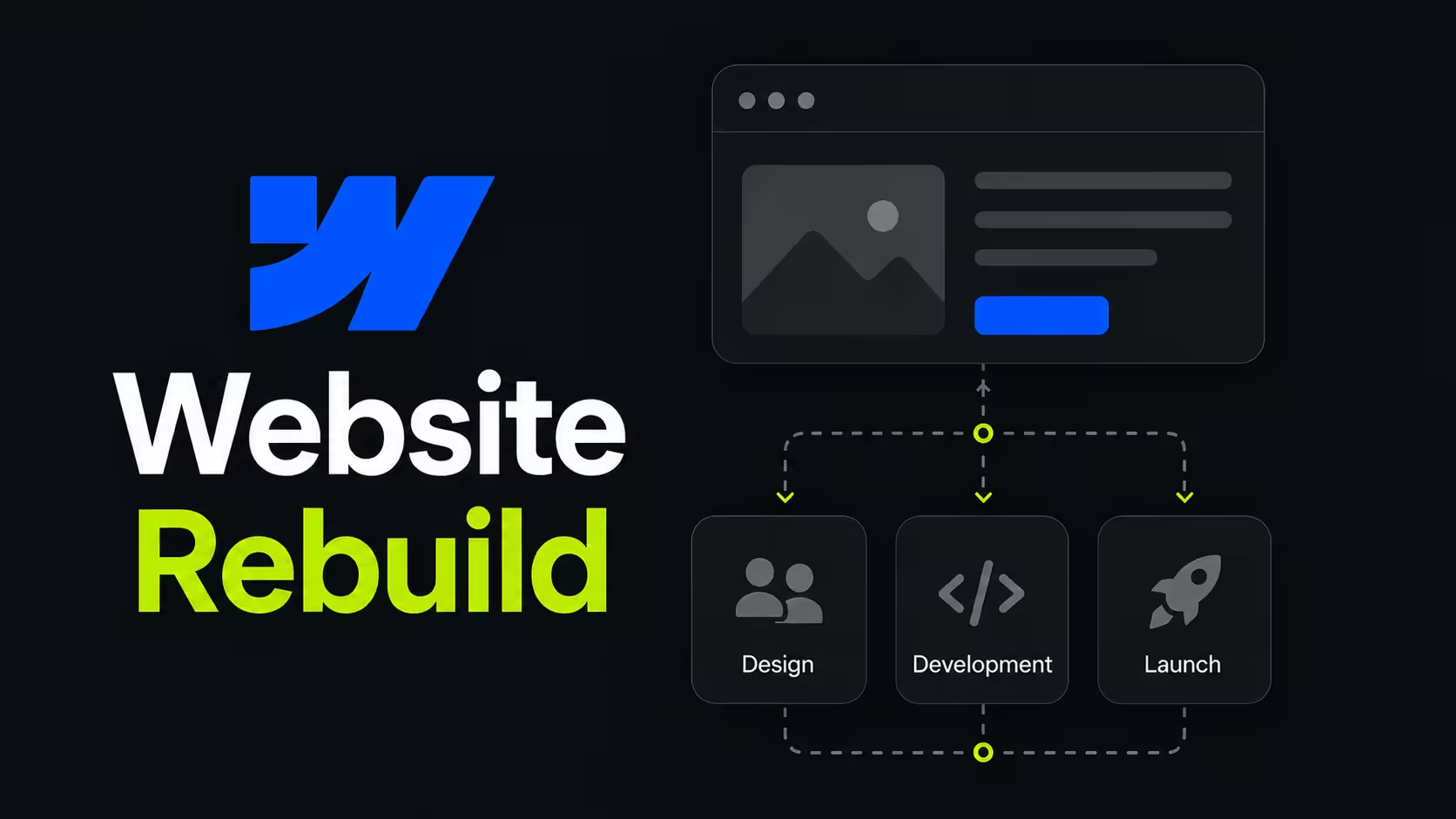
For a straightforward WordPress to Webflow migration, clean redirect map, no major custom integrations, a typical B2B SaaS site falls into our standard Website Rebuild range: €10,000 to start, typically €12,000 to €22,000.
The more useful framing for most SaaS teams is total cost of ownership. A typical B2B WordPress site costs €3,000 to €9,000 per year in hosting, plugins, maintenance contracts, and emergency fixes, before accounting for developer time on layout changes and content updates.
Over three years, many teams spend €20,000 or more on a platform they believed was nearly free. A well-executed migration often pays for itself within 12 to 18 months through reduced maintenance costs alone, before factoring in the marketing velocity gains from a site your team can actually operate independently.
No, but the process requires more care than a simple copy-paste. WordPress content exports as XML and can be converted to CSV for import into Webflow CMS collections.
The content body transfers reasonably well. What does not transfer automatically is SEO metadata (Yoast or Rank Math custom titles and descriptions), any content that relies on shortcodes, and custom fields from plugins like Advanced Custom Fields.
These need to be exported separately, mapped carefully to Webflow’s CMS fields, and verified page by page before launch. The CMS architecture itself - the collections, templates, and field structure - needs to be designed in Webflow from scratch with your search intent in mind, not just recreated as a mirror of how WordPress was structured.
That design work is actually an opportunity: most B2B SaaS sites end up with a cleaner, more SEO-intentional content structure after migration than they had before.