Why are backups important in Webflow?
A careless click, an incorrect update, or an accidentally deleted element — and the website is no longer as it should be. In such moments, save yourself backups! With regular backups, you can protect your Webflow project from unexpected data loss and restore it back to an earlier state at any time.
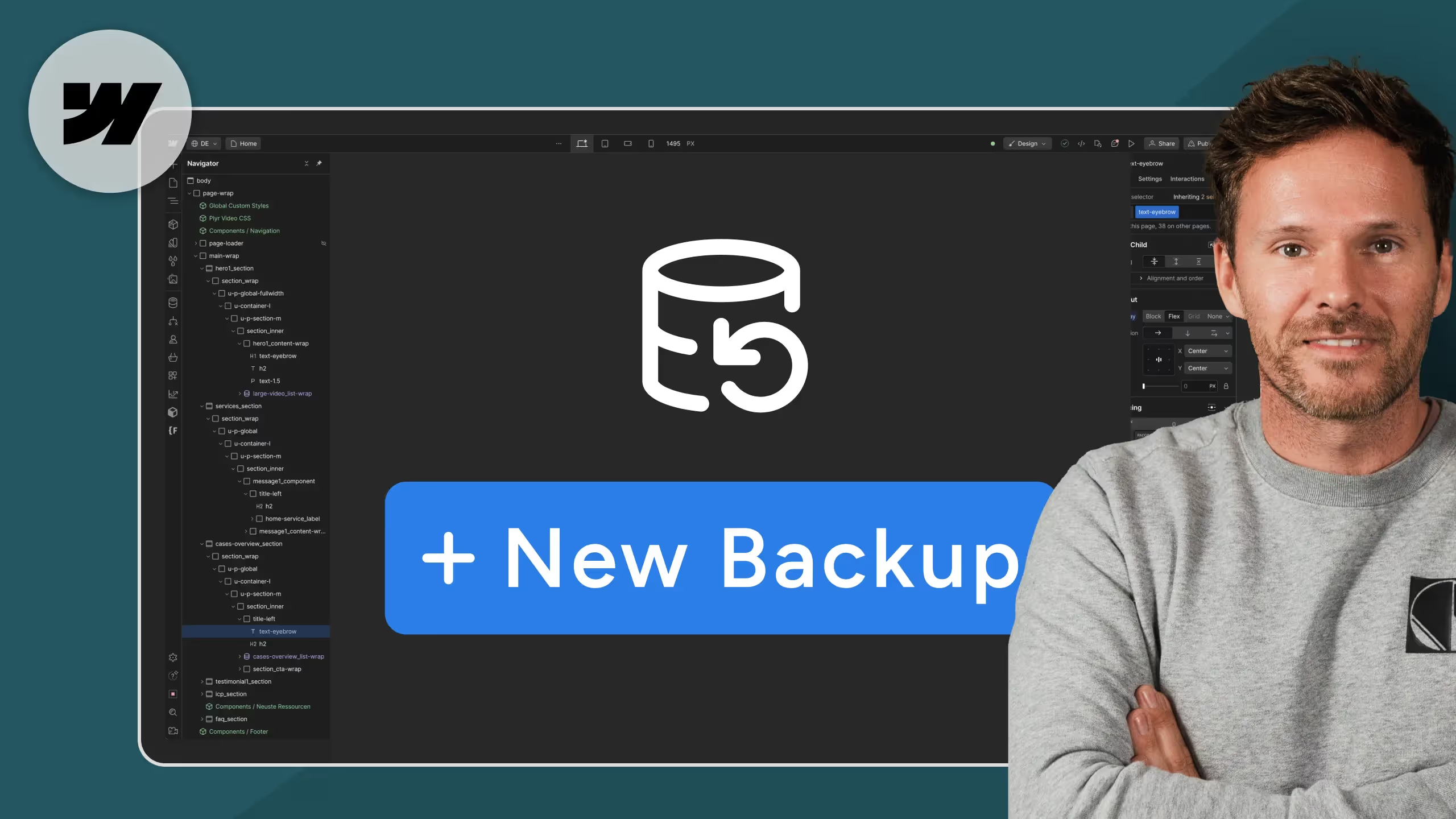
In this Webflow Backup Tutorial Let us show you how to Create, manage, and restore backupsto keep your site secure and functional
How do backups work in Webflow?
Webflow automatically creates as soon as you make significant changes to your site, such as:
- When publishing a new version
- When importing CMS data
- For major design changes
In addition, you can manually create a backup if you want to secure a special update.
How to create a manual backup in Webflow
If you want to back up before an important change, follow these steps:
- Open your Webflow project
- Go to designer mode
- Click on the gear icon in the left sidebar
- Select Backups from the list
- Click “Create a manual backup.”
- Type a name for the backup (e.g. “Before Redesign”)
- Save and you're done! Your backup is now securely stored.