What is a CMS migration?
A CMS migration moves a website from one content management system to another, for example from TYPO3, WordPress or a custom build to Webflow. The content moves, the URLs are kept or redirected, and your team starts publishing in the new system.
It’s more than a redesign. A redesign changes how pages look. A migration changes where content lives, how it is structured and who can edit it.
If you are still deciding whether to leave your current system, start with our guide on when leaving a legacy CMS is worth it. This article is about how to move once you have decided.
How do you plan a CMS migration?
Plan it in five phases, and finish the first two before any design work starts. Every later phase depends on them.
The SEO steps inside phases 1 and 5 are where traffic is won or lost. Our WordPress to Webflow migration SEO checklist covers them step by step, and most of it applies to any CMS.
How do you design the new content model?
Start from the content your team creates and updates every month, not from the old system’s menus. A content model is the list of collections, fields and templates the new CMS will hold.
Ask three questions for each content type:
- How often does it change? Blog posts, jobs, events and case studies belong in the CMS. A page that changes once a year can stay a static page.
- Who edits it? Fields should match how editors think: a summary field, a hero image, a CTA, not one large text block.
- Where is it reused? Content that appears on several pages, like testimonials or team members, should live in one collection and be referenced.
Get this right and the new site stays easy to run for years. Our guide to structuring a Webflow CMS shows the approach on real projects.
What should happen to your existing content?
Every URL gets one of four decisions: keep, merge, redirect or retire. Pages with traffic, rankings or backlinks always get a new home.
- Keep pages that perform and still say the right thing.
- Merge pages that answer the same question, so they stop competing.
- Redirect every old URL that changes, to its closest new page.
- Retire pages with no traffic, no links and no purpose, and redirect them to a parent page.
Most older sites carry a long tail of pages nobody has opened in years. Moving them costs time and makes the new site harder to run.
From our projects: For Instaffo, we moved 120+ landing pages from Instapage into Webflow and built a component library around them. The whole site now runs on one system, and marketing assembles new pages “with a few clicks”, in the words of Mika Leicht at Instaffo. See the Instaffo case.
How do you move the content itself?
Choose the method by volume. Small sites are moved by hand, larger ones by import or automation.
- By hand: under roughly 50 pages, copying and checking each page is often fastest, and it forces a useful review of every page.
- CSV import: blog posts, jobs or products with a clear structure can be exported and imported into CMS collections.
- Automation: for large or messy content, a script, an API or AI-assisted cleanup moves content in bulk. On heyData, we used AI-assisted content migration for the move.
Whatever the method, plan time for cleanup. Old rich text brings broken formatting, outdated links and images without alt text, and someone has to check every imported item.
Our tip: Agree on a content freeze date at kick-off. Every page someone edits in the old CMS after the export has to be redone by hand, and that is where launch weeks get lost. If an urgent change can’t wait, log it in one shared list so nothing is forgotten at launch.
What happens on launch day?
Launch day should be a switch, not a project. If redirects, content and QA are finished on staging, the go-live itself takes hours.
Work through it in this order:
- Final content sync. Add every change from the freeze list, so the new site matches the old one on the day it goes live.
- Redirects in. Import the full redirect map from phase 1 and test old URLs, starting with the ones that have the most traffic and backlinks.
- Last check on staging. Forms, tracking, cookie consent, metadata and every template on mobile.
- Domain switch. IT updates DNS. Keep access to the old system until the new site is confirmed live.
- Tell Google. Submit the new sitemap in Search Console and check that the live site isn’t set to noindex.
- Test again on the live domain. Submit every form, check that leads arrive in the CRM and that tracking events fire.
Then watch it. In the first weeks after launch, check Search Console for 404s and crawl errors, compare rankings and conversions against the baseline you exported, and add missing redirects as they show up.
How long does a CMS migration take?
A typical company website takes 6 to 8 weeks. Larger sites, many templates or several languages take 12 to 16 weeks.
What moves the timeline most:
- Number of templates, not number of pages. Twenty blog posts share one template. Twenty unique landing pages don’t.
- Languages. Every locale adds content, URLs and checks.
- Integrations. CRM, forms, product feeds and tracking all need to be rebuilt and tested.
- Decision speed. A content inventory that waits two weeks for approval delays everything after it.
What does a CMS migration look like in practice?
Here is one of our migrations from start to finish: the heyData relaunch, 90+ pages in two languages, live in 12 weeks.
The starting point
heyData is a Berlin compliance platform for regulations from GDPR to the EU AI Act. The company had just finished a rebrand, but the website still showed the old brand. Years of added pages had left a structure that was hard to change, and much of the content no longer matched the product.
The team needed a site that carried the new brand, converted better and kept its search visibility, on a much shorter timeline than a site of this size usually takes.
The decisions that mattered
- Cut before building. We retired 300+ outdated URLs: old blog posts, discontinued services and restructured offerings. Each one got a redirect to its closest new page, so the links and rankings pointing to them weren’t lost.
- Components first. The new site runs on a modular Webflow component system, so 90+ pages in two languages are built from the same blocks.
- Build in parallel. Two developers worked on the Webflow build at the same time. That is where the 12 weeks came from.
- SEO on every remaining page. Structure, metadata and internal links were reviewed page by page, and the content itself was moved with AI-assisted migration.
The result
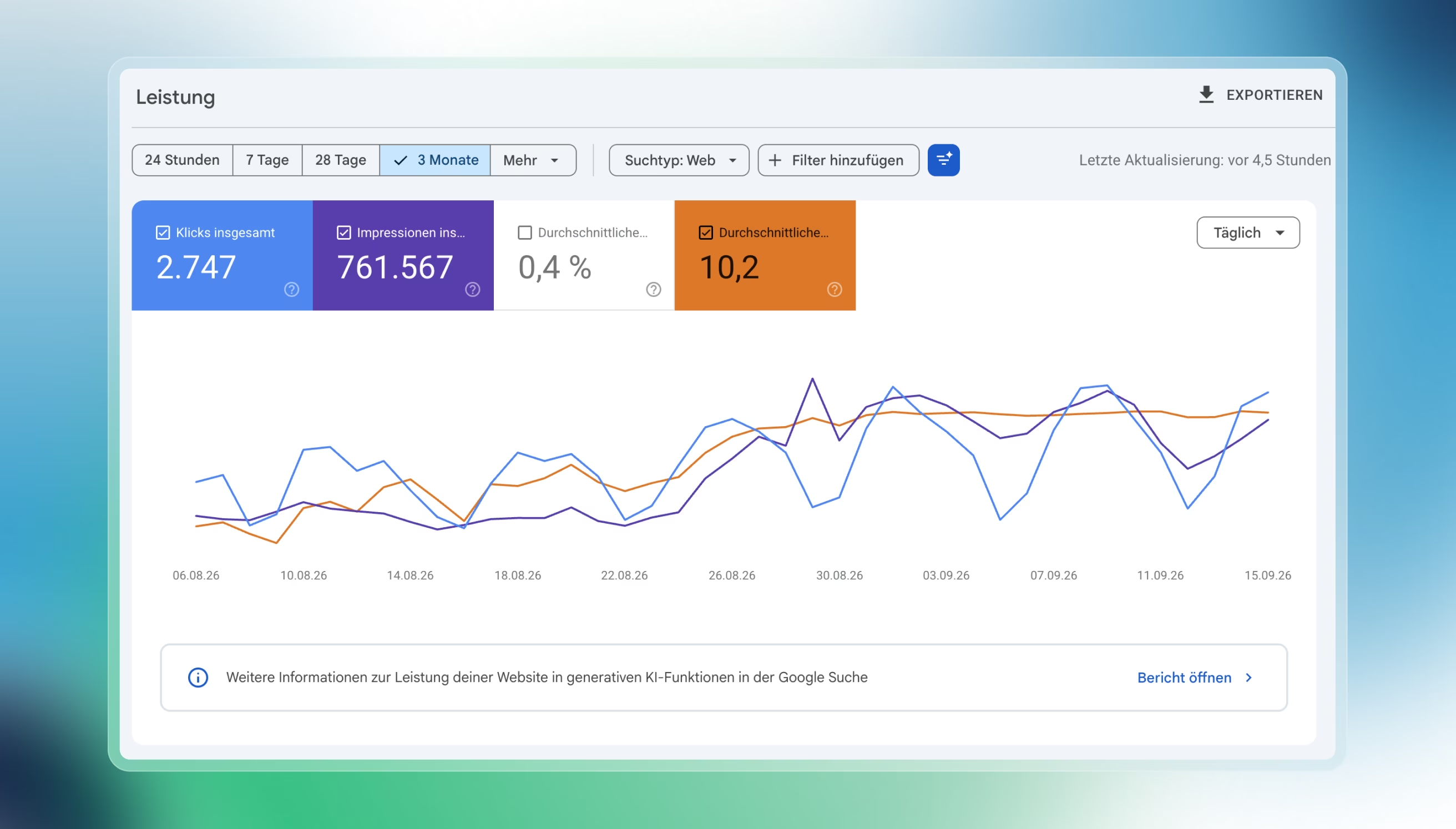
After launch, the average Google position across all keywords moved from 20.7 to 7.8. Daily impressions went from 8,340 before launch to a peak of 35,130 within weeks.
Marco Lolli, Team Lead Performance Marketing at heyData, described the project as “remarkably efficient, especially in the final stretch before launch.” His summary: “The new heydata.eu finally lives up to our brand.” Read the full heyData case.
What goes wrong in a CMS migration, and how do you prevent it?
Almost every migration problem traces back to a decision made too late. These are the four we see most, each with its fix.
- The old structure is copied 1:1. Fix: build the content model from how your team publishes today. A migration that copies yesterday’s menus keeps yesterday’s workarounds.
- Only pages are migrated. Fix: list PDFs, forms, tracking, the cookie consent setup and every integration in the inventory. They break quietly, and nobody notices until leads stop arriving.
- Editors see the new CMS at launch. Fix: let the people who publish every week work in it before go-live. Their feedback changes field names and templates while that is still cheap.
- Nobody records the "before". Fix: export Search Console data, rankings and conversion numbers before the switch. Without a baseline, you can’t prove the migration worked, or spot what slipped.
Where should your team start?
Start with the inventory. Export every URL from your sitemap and Search Console, add traffic and backlinks, and make the keep, merge, redirect or retire decision for each one. That list shapes the content model, the timeline and the budget. Bring IT in at the same time: domain access and the security review of the new platform are the most common reason a finished site waits to go live.
If your new CMS is Webflow, our overview of what Webflow is covers the platform itself, and our Webflow Rebuild process follows the same steps: an audit with a fixed-price scope, the core build, QA with URL mapping and redirects, then a monitored go-live and training for your team.
FAQs
The marketing lead. They own the content decisions and the launch sign-off, while the developer owns the build and IT owns domains, access and security.
Often yes for static pages. Blog and other CMS URLs usually change because each system structures them differently, which is fine as long as every old URL redirects to its new page.
No. You can move an existing design to the new system as it is. Many teams combine both, but keeping the design makes the migration faster and easier to measure.
They are rebuilt in the new system. List every integration in phase 1, then test each form, tracking event and data sync before launch. Our guide to Webflow forms covers CRM connections on Webflow.
Yes. Plan each language as part of the URL map and content model from the start, because every locale multiplies the pages, redirects and checks.