How does Webflow Localize work, and what does it cost?
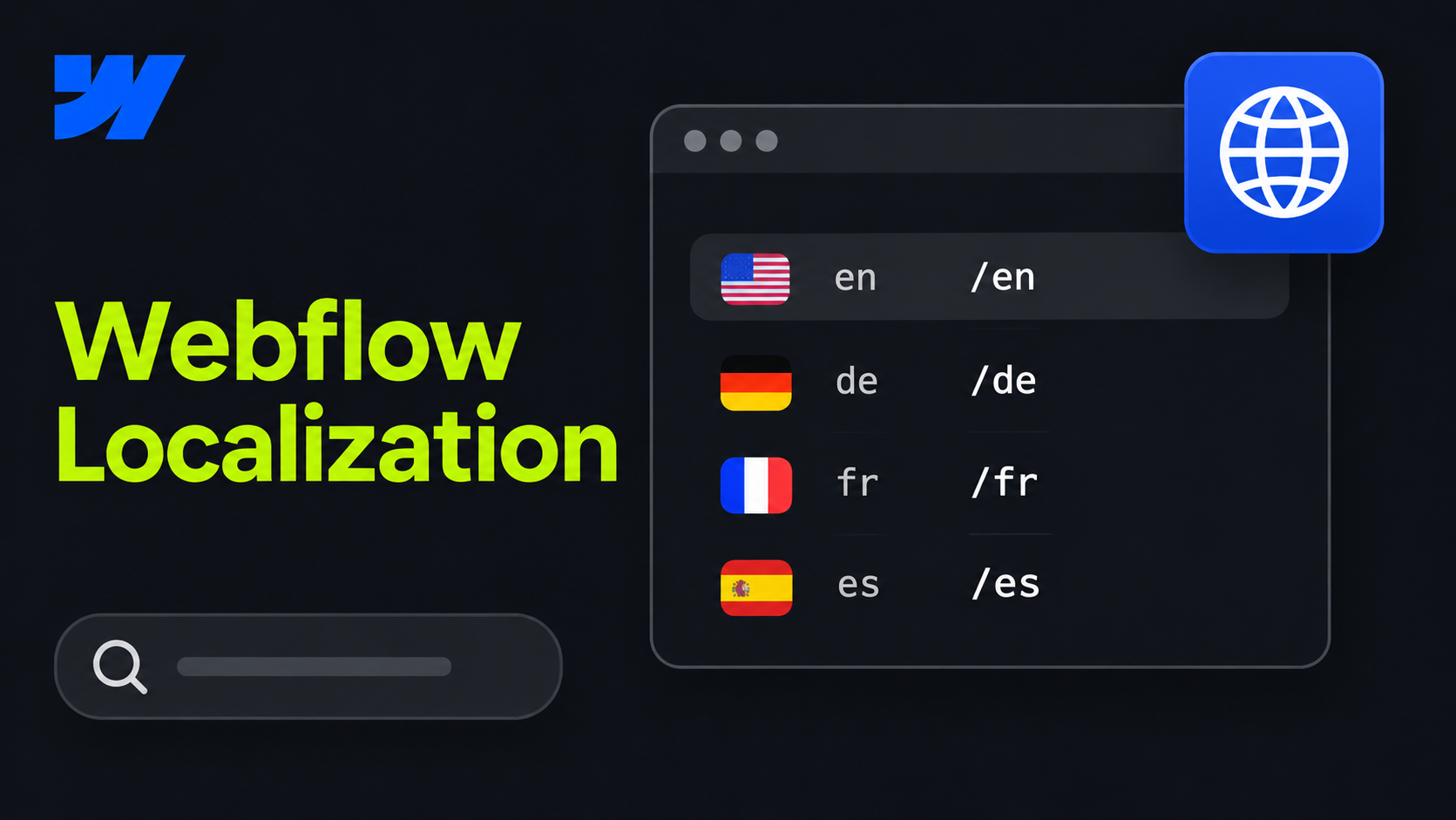
Localize adds secondary languages, called locales, to one Webflow site. You pay per secondary locale on top of a paid Site plan, and your primary language is free.
Enterprise adds element visibility per locale, editing rights per locale and custom limits. Prices change, so check the Webflow pricing page before you budget.
You build the site once in the primary locale, then translate and adjust each page, CMS item, image and style per locale in the same project. Each locale gets its own subdirectory on your domain, and Webflow adds hreflang tags to the sitemap automatically. That’s the setup Google recommends for multilingual sites: separate URLs per language, linked to each other.
For most company sites, Advanced is the realistic choice. Without localized slugs, German pages keep English URLs, which looks odd to German-speaking readers and misses the words they search for.
How do you set up Webflow Localize?
Setup takes seven steps, and you can do all of them before paying anything. Webflow lets you build and preview every locale for free and only charges once you publish.
- Start the free trial. Open the Localize panel in the left toolbar of the Designer and activate the trial. You can add languages, translate and preview everything, and choose Essential or Advanced when you’re ready to go live.
- Add your locales. In the Locales menu of the panel, add each language and, if needed, a region, for example German or German (Austria). Your existing site language becomes the primary locale, and it can’t be changed later, so check it before you add anything.
- Set the subdirectories. Each locale gets a subdirectory, like a /de/. Keep it short and use a region code like /de-at/ only if you really publish different content for that country. Make sure the subdirectory doesn’t match an existing page or collection slug, or the URLs will clash.
- Translate pages and CMS content. Switch to the new locale in the top bar and translate page by page, or let AI translation do the first pass for the whole locale, including CMS items and metadata. If your translations come from an agency or a translation tool, you can import them by CSV instead. Set exclusion rules first for anything that should stay as it is, such as product names or legal text you’ve already approved.
- Localize URLs and SEO settings. In each page’s settings, switch to the locale and translate the slug, meta title, meta description and Open Graph data. For CMS templates, do the same in the collection settings. Localized slugs need the Advanced plan.
- Adjust styles and images. Go through the key pages in the new locale and fix what breaks: long German headings, buttons that wrap, screenshots that still show English. Style changes in a secondary locale only apply there, so you can make a heading smaller in German without touching the English page. Different images per locale need Advanced, while alt text can be translated on every plan.
- Add a language switcher and publish. Add Webflow’s locale switcher element to your navbar and style it. Click through it on several pages, including CMS pages, and check that each link leads to the same page in the other language, not to the homepage. Then publish the locales, open the sitemap to confirm the hreflang tags are there and submit it in Google Search Console.
Automatic routing by browser language is set in the URL Routing menu on Advanced. It only applies to visitors who land on your homepage, so the switcher stays the main way people change language.
Is Webflow’s machine translation good enough?
Good enough for a first draft, not for publishing without a review. That’s the question users asked most when Localize launched, and it has improved a lot since.
Since September 2026, agentic translation works in two modes per language:
- One-time translation. Webflow translates a whole language, and your team edits it before publishing.
- Continuous translation. When you change the primary language, the other languages update automatically, using your tone, formality and glossary settings.
It covers static pages, CMS items and metadata, so you no longer translate a blog post field by field. Exclusion rules keep specific pages, components and CMS fields out of translation.
Users also ask what happens at the word limit. The allowance is pooled across all your locales, and text that hasn’t changed reuses translation memory, so it doesn’t count again. If you publish a lot, you can buy extra AI credits.
The review still matters. Machine translation picks the wrong word in short table cells and buttons without context, mixes formal and informal address, and sometimes adds things that weren’t in the source.
Is Webflow Localize worth it, or should you use Weglot?
For a company site in two to four languages that you build or rebuild in Webflow, Localize is usually worth it. Weglot can fit better for an existing site you don’t want to touch.
Weglot works as a translation layer on top of your site and starts at €15 a month for 10,000 words and one language. It’s priced by word count, not by language, so it looks cheaper for small sites and gets expensive as your content grows.
Choose Localize when:
- Your team edits in Webflow and should translate there too, not in a second dashboard after every change.
- You need design control per language, like other images or shorter headings.
- You’re building a new site or rebuilding an existing one anyway.
Choose Weglot when:
- You need a quick translation of an existing site without restructuring it.
- You need many languages for little content.
- You run several sites on different platforms and want one translation tool.
What are the limits of Webflow Localize?
Some limits are still worth knowing before you start using it:
- No Ecommerce. Localize doesn’t support Ecommerce Site plan features, so products and checkout stay in one language.
- The primary language is fixed. You can’t change it later or turn a secondary language into the primary one.
- Routing only on the homepage. Automatic language routing applies to visitors who land on the root homepage, not to deep links from Google.
- Deletes affect every language. Deleting a CMS item in the primary language deletes it everywhere. Set it to draft if it should only disappear in one language.
- Continuous translation can overwrite edits. Turning it on can replace translations your team wrote by hand, unless you exclude those pages or fields.
- Image localization costs extra. Different images per language need Advanced.
What changes when you localize for German-speaking markets?
More than the language. Translation turns words into German, while localization makes the page read as if it was written for a German buyer.
- Form of address. Sie, du or ihr. Many B2B companies in Germany still use Sie, while many tech and SaaS brands use du. Whatever you pick has to hold on every page.
- Legal pages. German sites need an Impressum, and privacy and cookie texts follow German and EU rules, as covered in our Webflow GDPR guide.
- Proof. German buyers look for German clients, reviews and a contact person in their region.
- Search terms. People search in their own words, not your translated ones. German searchers rarely type “webflow lokalisierung”, but they do search for “webflow übersetzen” and “webflow deutsch”.
- Length. German copy runs longer. On our own site, German text comes out about 16% longer than the English source, so buttons and headings need room.
Designbase localization: We run our English and German site with DeepL, our own glossary and a human review, connected to the Webflow CMS. Whichever tool translates, the review and the decisions above need to stay with your team.
How do you add languages without rebuilding later?
Plan languages before design, not after launch. Users who moved existing sites into Localize describe it as time-intensive, because every fixed layout, URL and CMS field has to be revisited.
- Choose the primary language carefully. Pick the one most of your content starts in.
- Model the CMS for languages. Decide which fields get translated, which stay shared and which content exists in only one market. Our guide to Webflow CMS structure shows how.
- Design with the longest language. Test every component with German copy, not only English.
- Map URLs and redirects. If you’re moving from another CMS or a plugin, map every old language URL to its new one before launch.
- Agree on a review workflow. Decide who translates, who approves and how changes in the primary language reach the others.
From our projects: For talque, we built the site in English and German from the start - 88 pages per language, 176 in total, in 11 weeks of net build time. For heyData, we rebuilt 90+ pages in two languages in 12 weeks and redirected more than 300 outdated URLs.
If you’re planning a site in more than one language, our Webflow Expert team builds the structure for every language from day one.
FAQs
Yes. With the Localize add-on, one Webflow site can run in several languages, each in its own subdirectory with translated content, slugs and SEO settings.
Yes. Localize includes AI translation, and continuous translation keeps languages in sync when your primary content changes. Have a native speaker review the result before publishing.
Yes. Webflow adds hreflang tags to the sitemap and pages, and sets the HTML lang tag for each language automatically.
Not with Localize. It doesn’t support Ecommerce Site plan features, so product pages and checkout stay in one language.
Up to three secondary languages on Localize Essential and up to ten on Advanced. Enterprise plans allow more.